Current Market “Pay” (Bar Code/QR Code Payment)
– PayPay has 45%
– Followed by Rakuten, dPay and au Pay
This is a crowded market place, and players are already leaving:
f.e. Yucho pay (from Japan Post) and Hama Pay (from Yokohama Bank) have already announced their exit from the market.
Teppay is entering this kind of market, but they have their own unique advantages and disadvantages:
Advantages:
– Mobile Suica has 45 Million users
– No need for an additional app
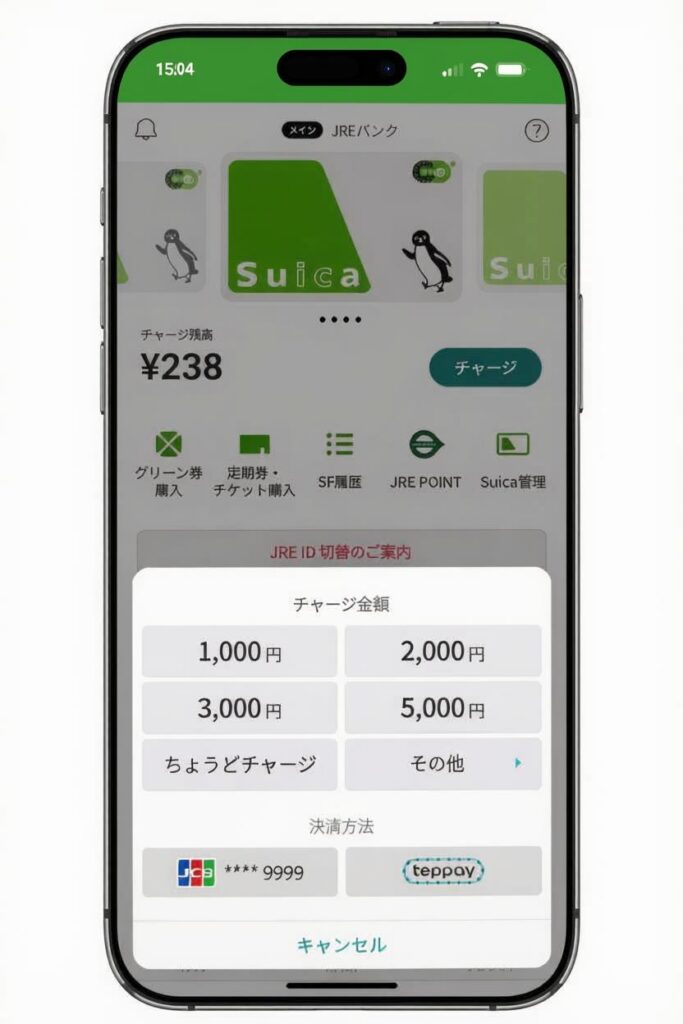
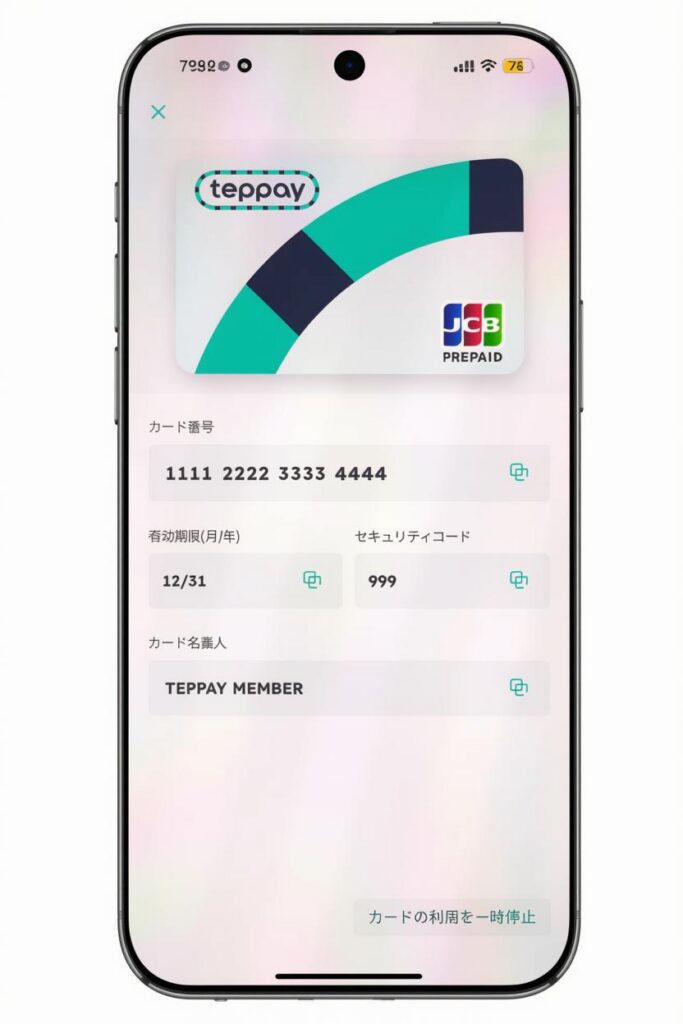
– Can charge Mobile Suica from the balance, spend it from a JCB card number for online purchases, or use bar code/QR code payment
– JRE Point Ecosystem
Disadvantages:
– Late market entry
Some additional Information:
– The version of mobile Suica with Teppay integrated was released on 2026.10.20 at 11am JST. If you update after that, your app will gain the Teppay features.
– Some features (f.e. the JCB virtual prepaid card) require you to verify your identity. In practice, this means using your MyNumber card. You will need to know the Electronic Signature password for your MyNumber card in order to complete this step.
– You can have multiple different accounts on different phones, but only one can be verified through a single MyNumber card. (This is similar to PayPay).
– There is no mention in the app or on the web site about a way to withdraw cash from the app or transfer it back to a bank account. It would be safe to assume that once you put money in, there is apparently no way to get it back out in cash.
A Quick Walk-through:
When you first Open Mobile Suica, everything will look almost the same as usual.
However, you will notice an icon with a “t” inside a circle in the middle section of the bottom of the screen.
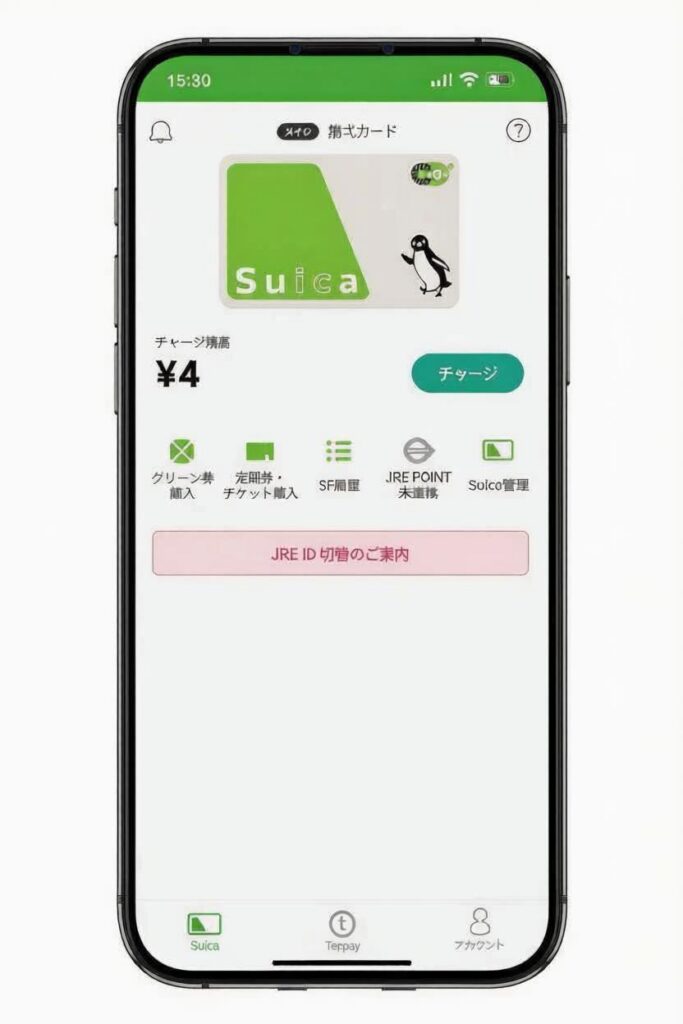
When you touch this icon, it will change to the Teppay screen.
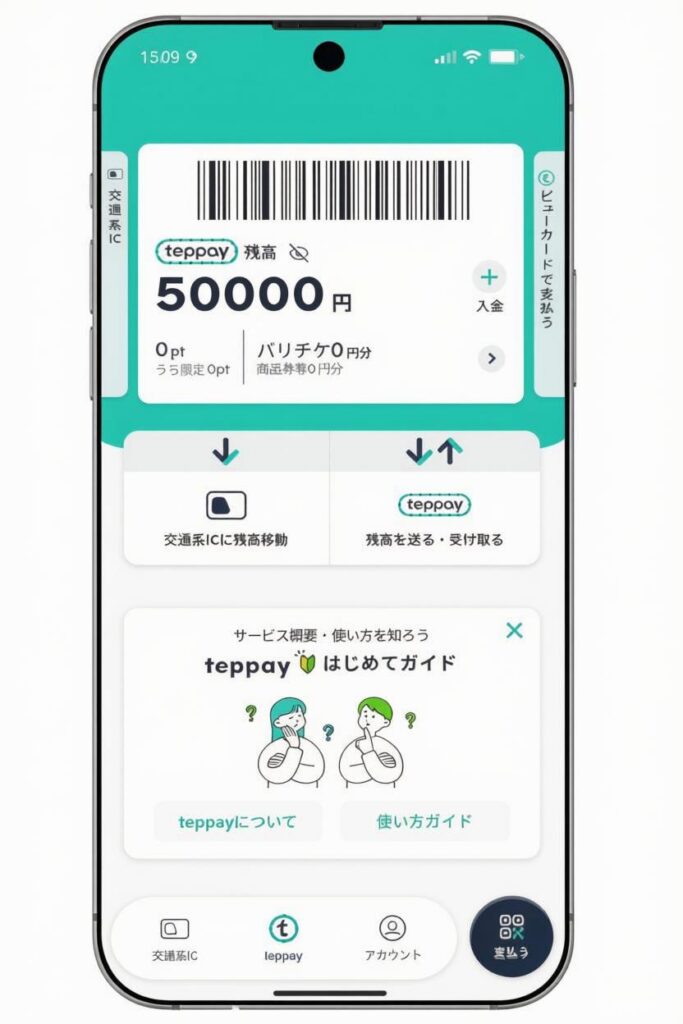
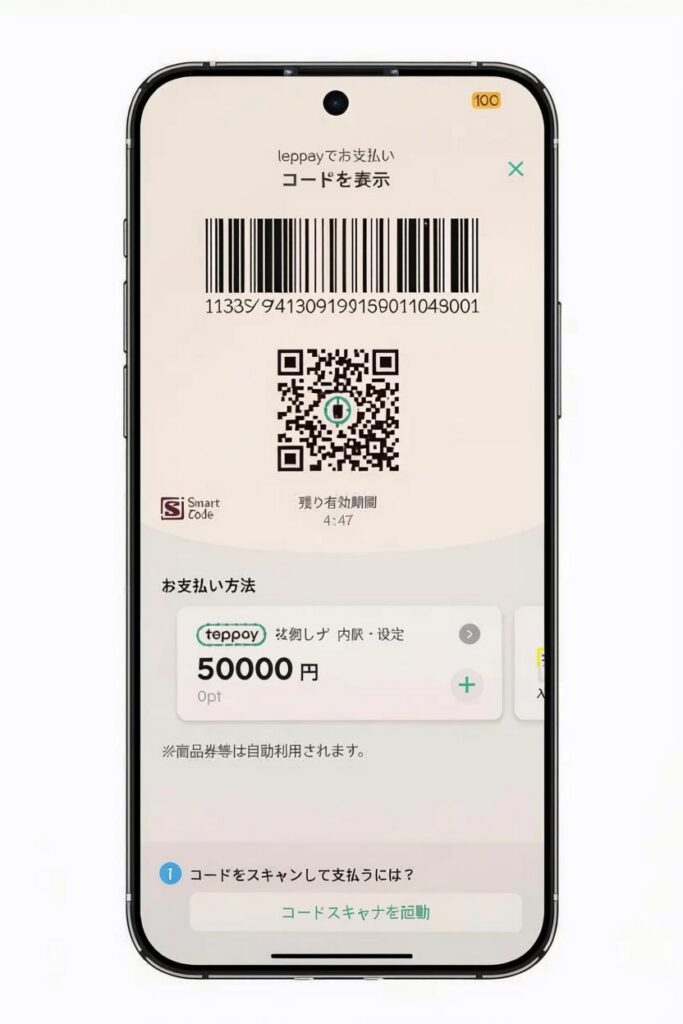
Even without registering your MyNumber card, you can load a balance onto Teppay from an ATM at 7-11 or other similar stores. Once such a balance is loaded, you can pay using the dark blue payment button in the lower right-hand corner of the screen.
Touching that button will bring up a screen asking whether you want to display a code (Left), or read a code (Right).
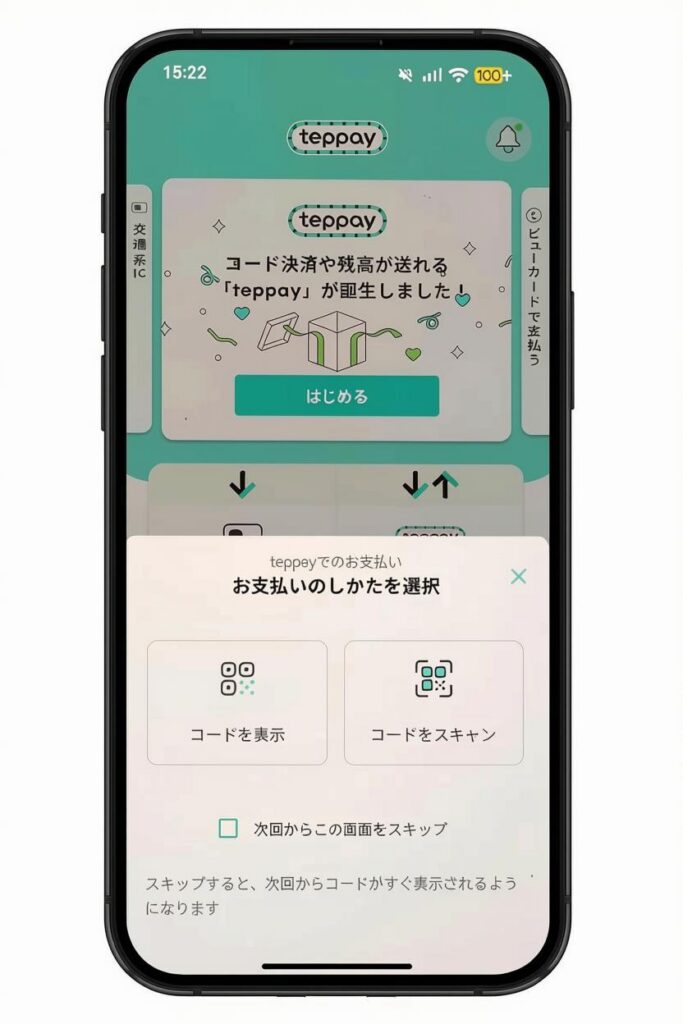
If you select the option on the right-hand side, the camera will open so that you can scan a QR code. If you select the left-hand side, the following code display screen will open:
If you select the (transportation card) icon at the lower left-hand of the main Teppay screen, then it will return you back to the normal Mobile Suica screen. From there, you cal select “Charge”, and you will see that there is now a new option for charging from Teppay in addition to the normal credit card option.
If you do register your MyNumber card, then you can apply for the virtual JCB prepaid card, which was immediately approved in my case.
Leave a Reply